Advanced

How to Edit Audiobook Recordings with Quick Fix

Re-narrating an entire 4,000-word chapter because the AI mispronounced a character's name is the kind of thing that makes authors quit halfway through their first audiobook. You don't need to.

Quick Fix lets you select any passage — a single word, a phrase, a paragraph — and re-narrate just that selection. The new audio is stitched back into the chapter automatically, so timings, pacing, and the rest of your performance stay intact. Here's the workflow we recommend after producing dozens of titles inside AuthorVoices.ai.

1

When to use Quick Fix vs. full re-narration

Quick Fix is built for surgical edits. Use it when:

  • A proper noun (character name, place, brand) came out wrong.
  • A homograph went the wrong way — "lead" the metal vs. "lead" the verb, "read" past vs. present.
  • The narrator rushed a punchline or under-emphasized a key beat.
  • A line break got eaten and two sentences ran together.

Don't reach for Quick Fix when the entire chapter feels off — wrong narrator, wrong pace, wrong tone. In that case, change the voice or settings and re-narrate the whole section. You'll spend less time and the audio will be more consistent.

2

How to edit audiobook recordings, step by step

1. Open the chapter that needs fixing

From your dashboard, go to Projects and click into the book you're proofing. Each chapter or section is listed with its narration status, duration, and a Proofed checkbox.
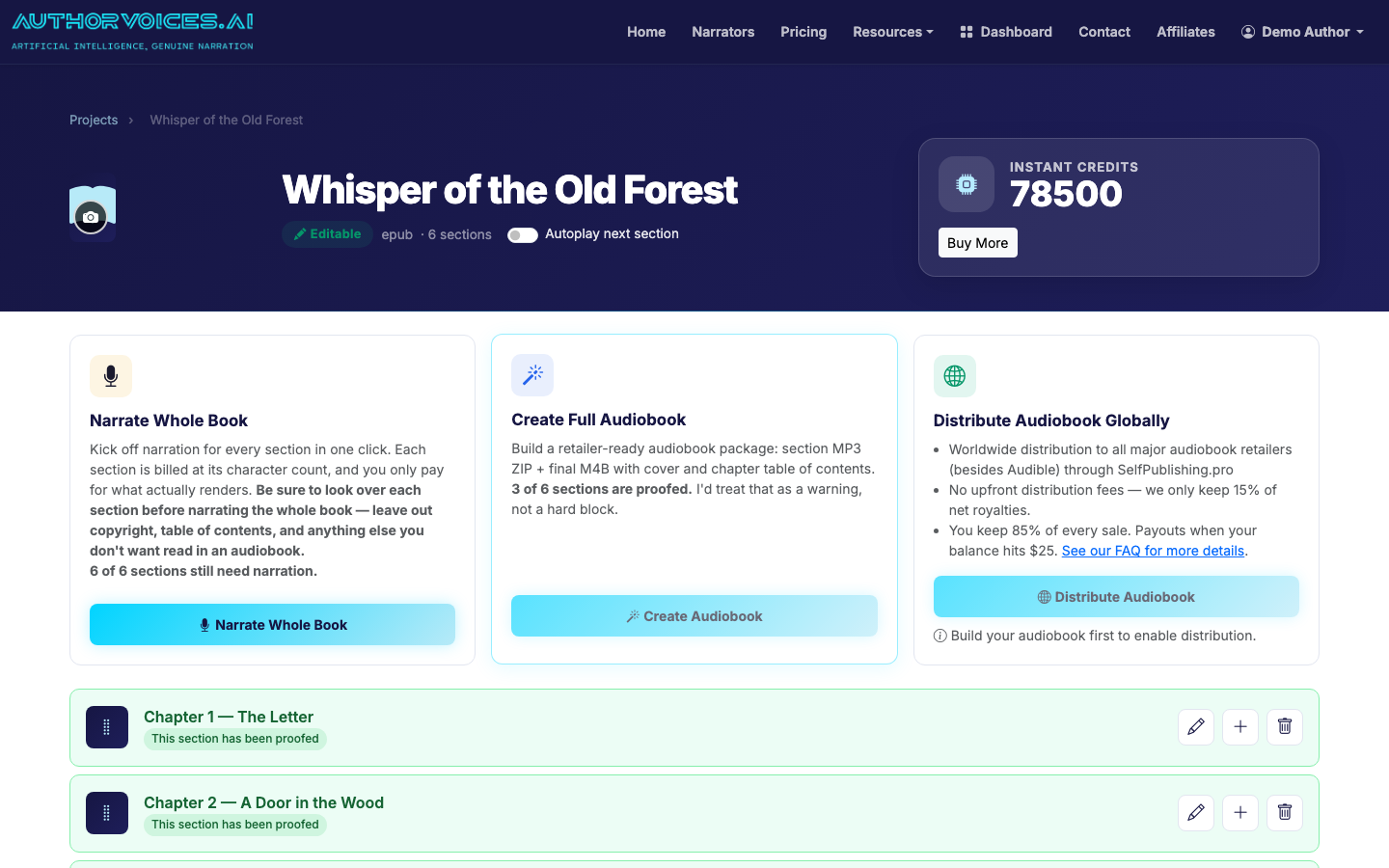
The project detail view, where Quick Fix lives alongside narrate buttons and Proofed flags.

2. Play back and mark the timestamp

Hit play on the section. When you hear the problem, pause and note roughly where it falls. The waveform and transcript scroll together, so you can scrub back a few seconds without hunting blindly.

3. Select the exact text to re-narrate

In the chapter's text panel, highlight the words you want to replace. Quick Fix works on selections from a single word up to a full paragraph. Smaller is usually better — a 5-word fix blends more invisibly than a 50-word one because the surrounding audio doesn't change.

4. Run Quick Fix on the selection

With text highlighted, click Quick Fix. The system re-narrates just that selection using the same narrator and voice settings as the rest of the chapter, then splices the new audio in place. This typically completes in 10–30 seconds depending on selection length.

If you want to tweak phrasing — say, spelling "Siobhán" as "Shi-vaughn" so the AI gets it right — edit the highlighted text first, run Quick Fix, then revert the visible text afterward if you need the printed version unchanged. The audio keeps the corrected pronunciation.

5. Listen, and re-fix if needed

AI narration is non-deterministic. The first regeneration might still get a name wrong, or the inflection might land oddly. Just run Quick Fix again on the same selection — you'll often get a clean read on the second or third try. Each Quick Fix is cheap on credits compared to re-rendering the whole chapter.

6. Flag the section as Proofed

Once you're happy, tick the Proofed flag. This is your own checklist, not a quality gate — but for a 30-chapter book, it's the difference between knowing where you are and starting over every session.

7. Re-export your master files

After your last fix, export a fresh ACX-mastered MP3 ZIP or single-file M4B. The export pulls your latest audio for every section, including all Quick Fix patches. If you've already submitted to a distributor, upload the new master to replace the previous version.

3

A realistic editing budget

For a 60,000-word novel (~7 hours of audio), plan on:

  • 3–5 hours of focused listening at 1x–1.25x speed.
  • 15–40 Quick Fixes across the book — mostly proper nouns and the occasional homograph.
  • One full re-narration of maybe one or two sections where the original take just didn't work.

Authors who skip the proofing pass and ship the first render almost always get a return-rate spike from listeners who notice the rough edges. Two evenings of editing is cheap insurance.

If you're earlier in the process, our complete guide to making an audiobook covers the steps before this one, and turning a book into an audiobook walks through upload and narrator selection. For why we don't recommend targeting Audible directly, see making an Audible book.

Frequently asked

How do I edit audiobook recordings without re-narrating the whole chapter?
Use Quick Fix. Open the chapter in your project, highlight the specific words or sentences that need to change, and click Quick Fix. The tool re-narrates only that selection with the same narrator and splices the new audio back into the chapter. Surrounding pacing and performance stay intact, which keeps the chapter sounding consistent. Most authors fix a typical novel with 15–40 small Quick Fixes rather than re-rendering full sections. Selections at natural phrase boundaries — start of a sentence or after a comma — splice the cleanest.
What's the best way to fix mispronounced names in an AI audiobook?
Highlight the offending word in the chapter text, then edit the spelling phonetically before running Quick Fix — for example, change "Siobhán" to "Shi-vaughn" or "Cholmondeley" to "Chumley". Quick Fix narrates from the edited text, so the audio uses the corrected pronunciation. Once the audio is right, you can revert the printed text if you don't want the phonetic version saved. Because AI narration is non-deterministic, occasionally you'll need to run Quick Fix two or three times to get a clean read.
Will Quick Fix edits sound like obvious splices in the final audiobook?
Not if you select carefully. Quick Fix uses the same narrator and voice settings as the original take, so the timbre matches. Splice seams become audible mainly when you cut mid-word, mid-phrase, or across a held breath. Stick to selections that begin and end at sentence boundaries, commas, or other natural pauses, and the patch is generally inaudible. For longer rewrites — say, more than a paragraph — re-narrating the whole section often produces smoother results than a large Quick Fix.
How many credits does it cost to edit audiobook recordings with Quick Fix?
Quick Fix is billed by the length of the selection, not the chapter. A five-word fix costs a tiny fraction of a full chapter re-narration, which is why authors can afford to run it multiple times until a tricky line lands right. Studio subscribers can run Quick Fixes within their monthly Studio credit allowance; Instant Credit pack holders pay per character of edited text. Either way, editing is dramatically cheaper than re-rendering whole sections.
Can I track which audiobook chapters I've already proofread?
Yes. Every section in a project has a Proofed checkbox alongside its narration status. Tick it once you've finished listening and made any Quick Fix corrections. The flag persists across sessions and survives re-exports, so you can proof half a book today and pick up exactly where you left off later. For a long manuscript, the Proofed flags are the difference between methodical progress and losing your place — use them from the first chapter onward, not after the fact.